Gamemasters · Quizzes
Authoring Quizzes (Trials & Rifts)
Write a node's questions once, then tune the difficulty ceilings for its path Trial and the campaign Rift.
Verified against app build 2f427ecbd · 2026-09-10
RPGLMS has three quiz surfaces, all built from the same questions:
- Engagement — a node’s mini-quiz (the node’s “Questions” section).
- Trial — a path quiz, which aggregates every question across that path’s nodes.
- Rift — a Campaign’s final, aggregating every question in that unit. A course has one Rift per unit, not one overall.
Author questions once, per node
You don’t write separate Trial or Rift questions. You author questions on a node (its Engagement pool); the path Trial and campaign Rift simply aggregate them. So “authoring a Trial/Rift” means writing node questions plus tuning the path/campaign quiz settings.
Play one in the sandbox
Authoring is builder-only, but you can play a Trial, Rift, or Engagement in the free sandbox at app.rpglms.com/?demo=1 — it boots the real app against local storage, so every quiz surface behaves exactly as it does in production.
Write node questions
Open a node's Questions section
In the Campaign Builder, drill into a path → node and find the Questions section (icon
quiz_outlined, empty state “No questions yet”). Existing questions show a type chip — Pick One, Pick Many, or Order Items.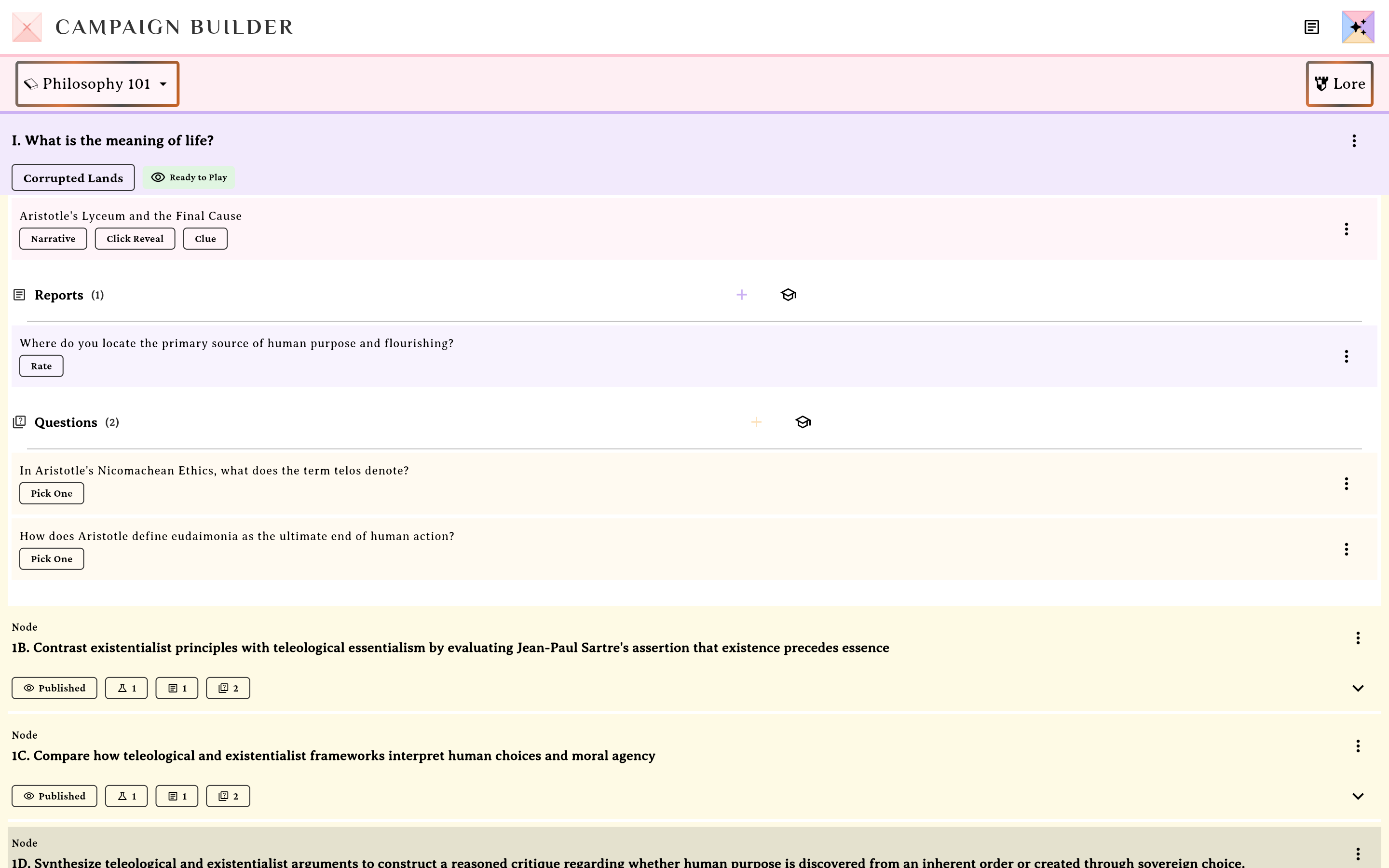
Questions live on the node — the Engagement pool.verified @ 2f427ecbd Open the editor and choose a type
Tap add (or an existing question) to open the Create/Edit Question sheet. Pick a Question Type: Pick One, Pick Many, or Order Items.
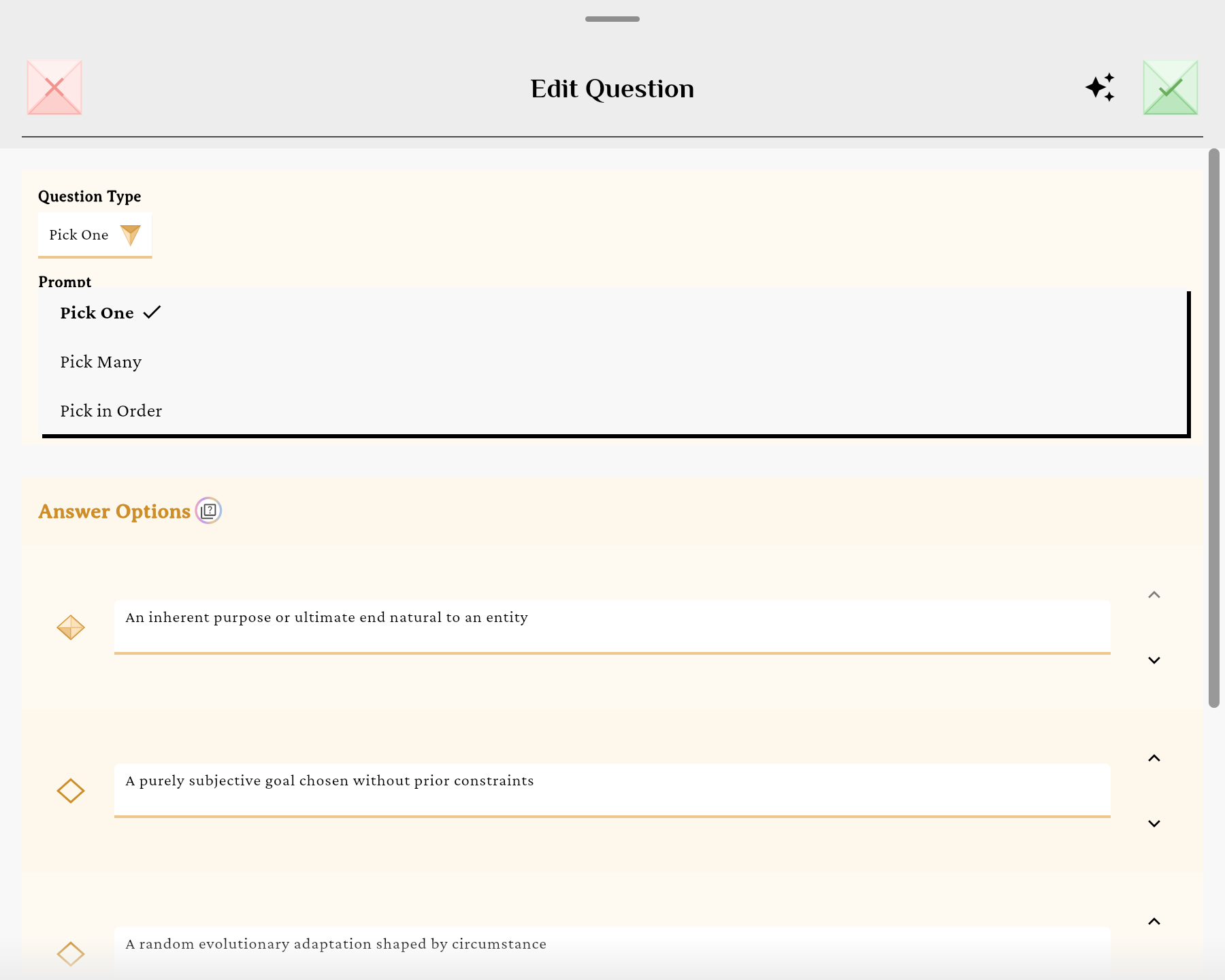
Three question types.verified @ 2f427ecbd Write the prompt and answers
Fill the Prompt and the option rows. Pick One uses a radio per row; Pick Many uses checkboxes (2–3 correct); the third type shows numbered rows you arrange (“Options will be presented in the order shown below”).
That third type is labelled Pick in Order in this dropdown but shows as Order Items on the saved question chip — same type, two labels.
Once saved, tap a question to open its preview, and the two read back differently: Pick One shows a single green check, while Order Items greens every row — its correct answer is the sequence, not any one option, so the Correct line spells the order out.
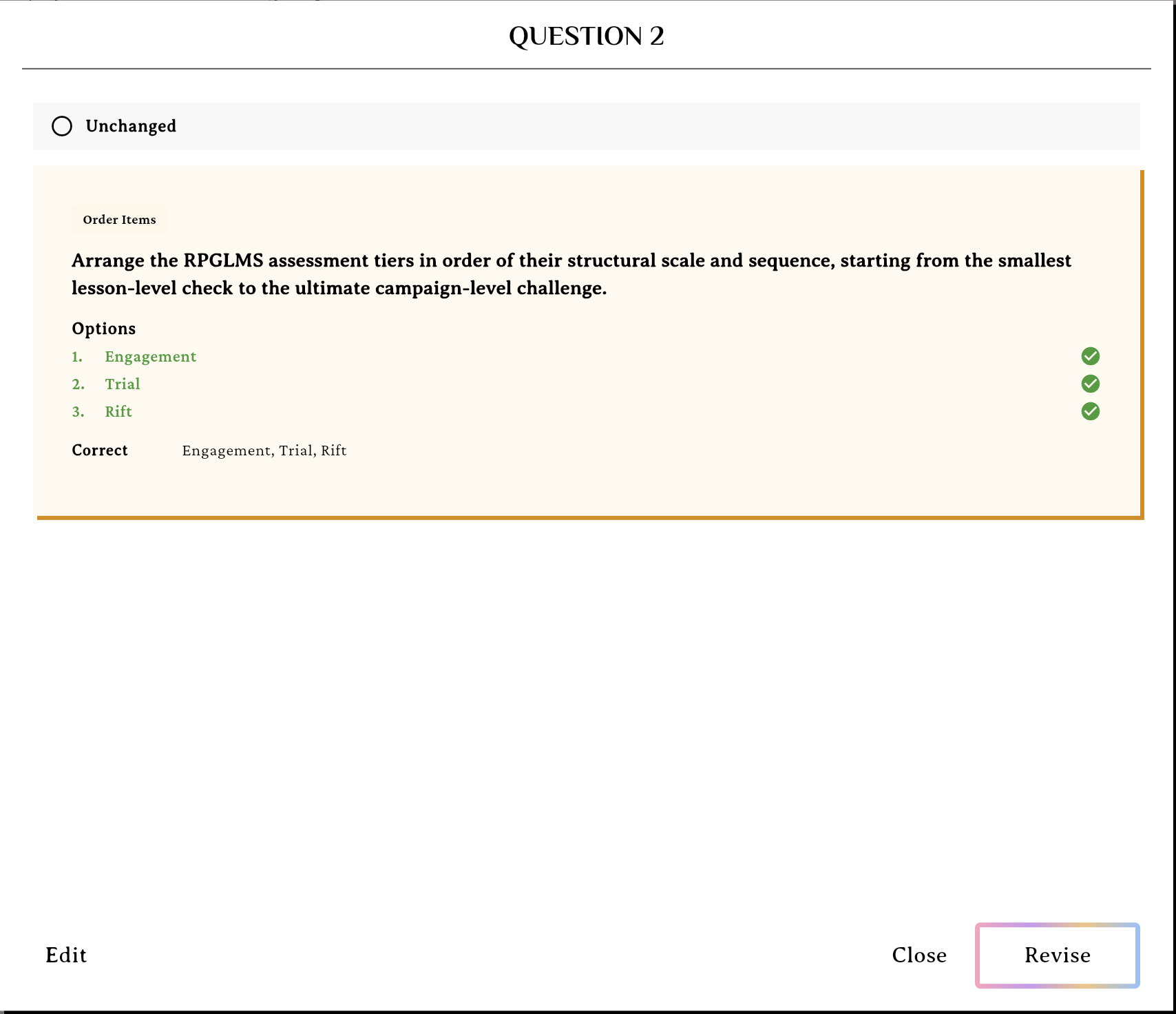
Order Items marks every row correct — its answer is the order itself.verified @ 2f427ecbd Save
Save the question; it appears in the node’s Questions list. (Questions have no manual reorder — they’re shuffled at play time.)
Tune the difficulty ceilings
Open Quiz Settings
From the Edit Campaign sheet, tap the edit control on its Quiz Settings row. The sheet that opens is Edit Campaign Difficulty — “These settings govern every Trial in this Campaign and its Rift.” There is one set of ceilings per unit; a Path no longer carries its own.
Set the ceilings
Configure Attempt Limit (None/1/2/3), Starting Hearts (1/2/3), Max Hearts (1/2/3), Bonus Heart (correct streak) (3/4/5), Time Per Question (None/10/20/30 sec), Minimum Difficulty (Any/Easy/Normal/Hard, defaulting to Any), and Passing Score (%) (50–100). These are the limits your students play within.
Minimum Difficulty is the one control that works the other way round. Hearts and timers are ceilings — a student can dial them down but never past what you set. Minimum Difficulty is a floor: students choose their own difficulty at the start screen (Normal if they don’t pick), and anything below your floor is raised to it. They can always make it harder on themselves; they can’t go easier than you allow. Leave it on Any to keep out of the way entirely.
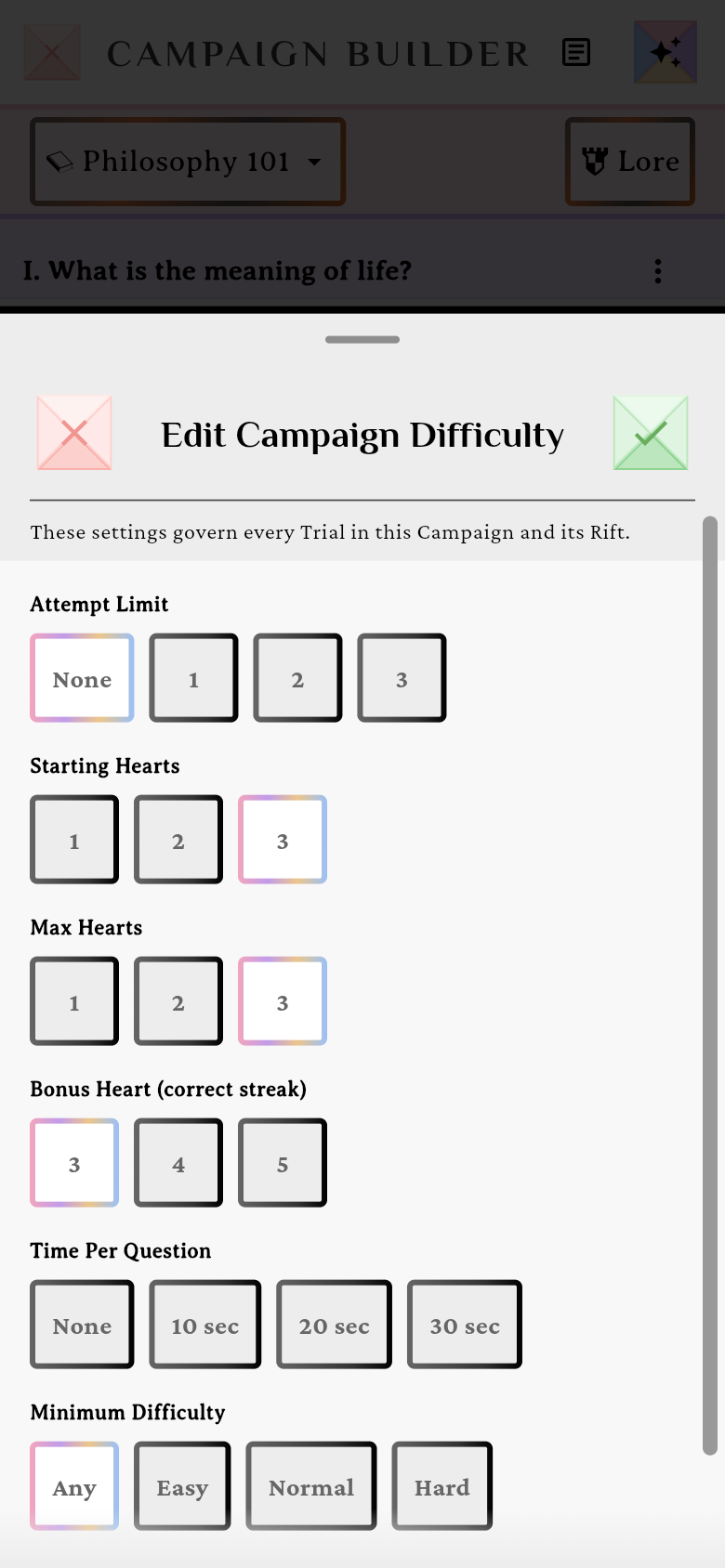
GM ceilings: attempts, hearts, bonus heart, timer and minimum difficulty — Passing Score sits just below.verified @ 2f427ecbd
GMs set ceilings; students choose within them
Your seven settings are ceilings. At the quiz start screen, the student picks their own difficulty within those limits — and a student-only Monster Timer (Off / 60s / 30s) for an extra challenge. Engagements have no difficulty picker. See the player-side quiz guide.
Validation
Common validation messages: “Please select one correct answer” (Pick One) and “Please select at least one correct answer” (Pick Many), plus required-field and max-length checks on the prompt and options.